Product
One system, everyone in their place on the shop floor.
From the tablet at the machine to the TV on the wall and the manager’s report — the same data, with no retyping.
Always included
Operator and stops
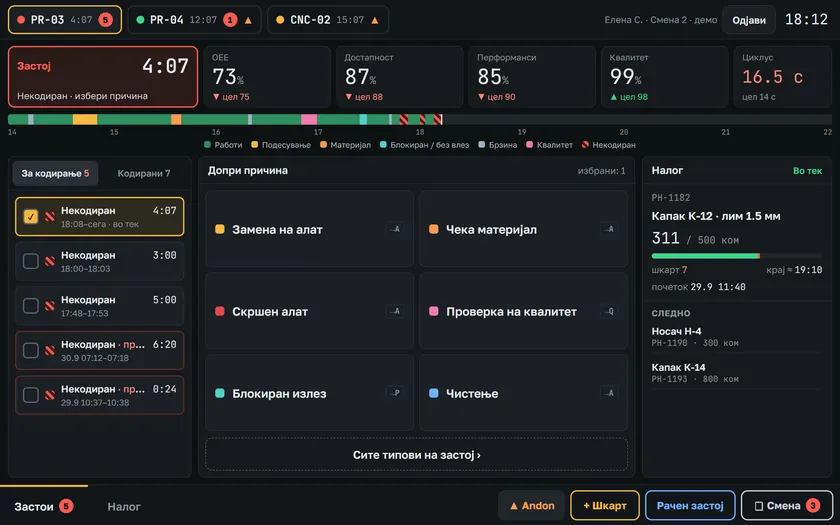
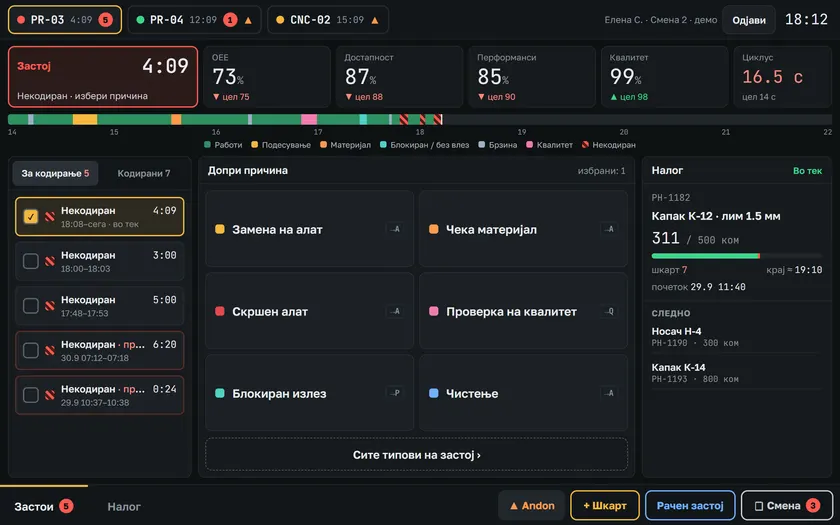
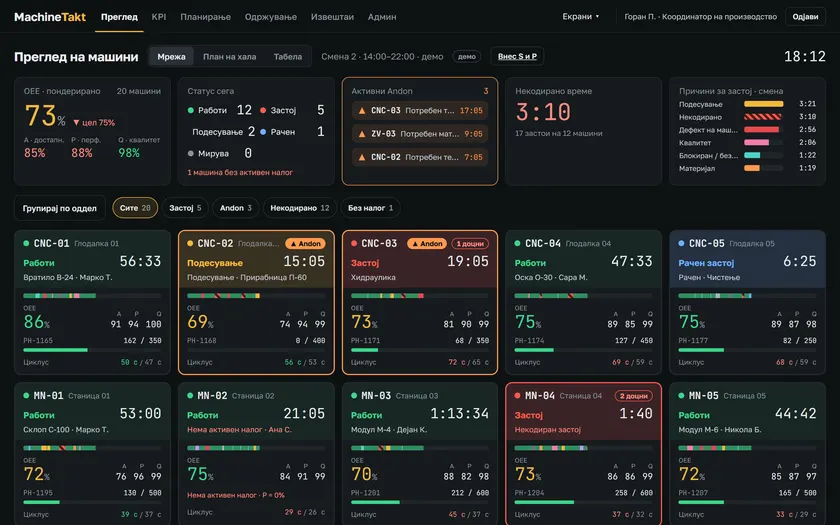
- A stop is logged automatically from the machine pulse / status, or manually.
- The operator picks a reason from the code list in two taps.
- An uncoded stop never disappears — it stays visible until it is coded.
- Runs on a tablet or touch panel next to the machine.
- The operator cannot change the order quantity: stopping early is a pause with a reason, and the planner closes the order.
Try it as an operator
Code a stop in two taps — on your phone.
Scan the code: your phone opens the operator screen. The machine is down, you pick the reason.
Open the demoor open it here →Module
Andon
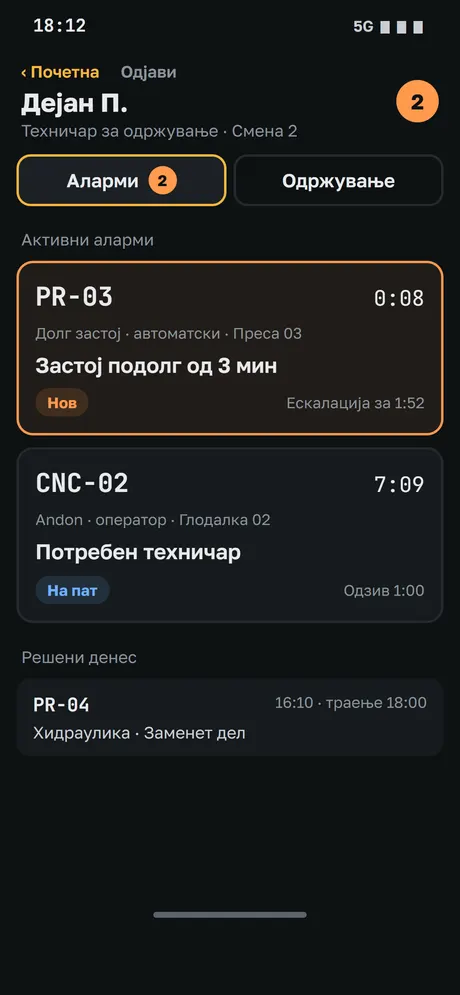
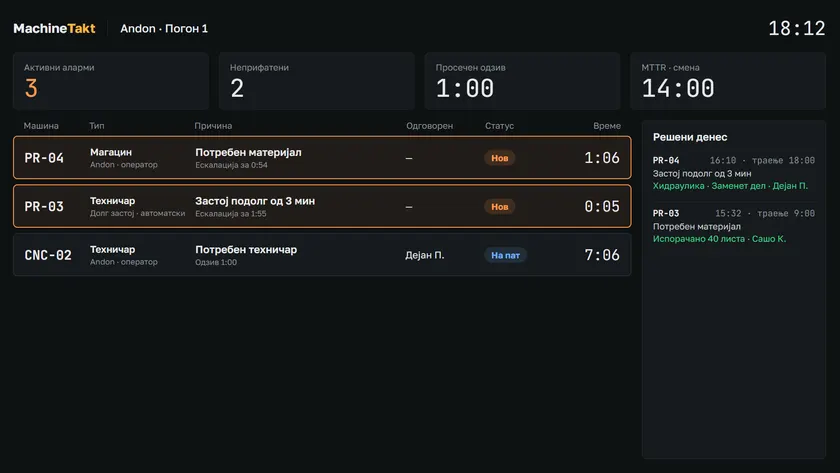
- Call maintenance and automation technicians, the warehouse, quality or the shift leader.
- Escalation by level: if a call is not accepted it moves to the next level after the minutes set for that level. You can assign it or accept it.
- Push notifications to personal Android phones; the phone shows only alarms and the basics.
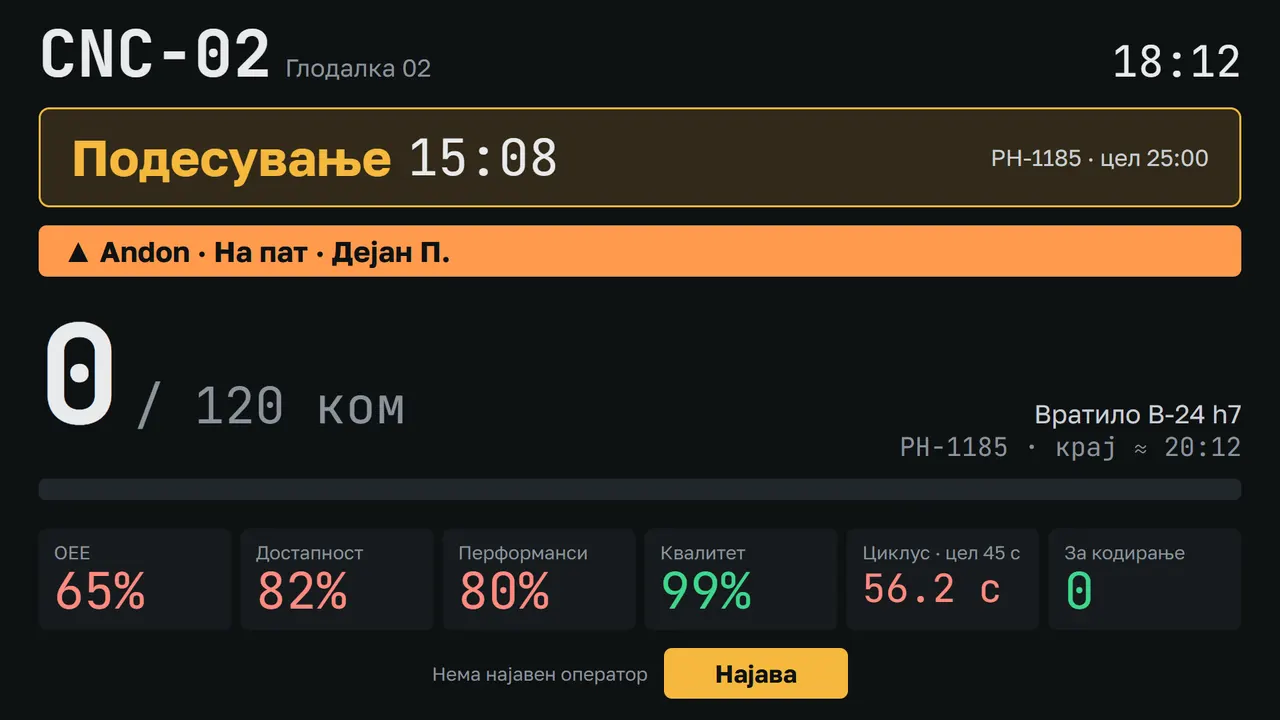
- Andon TV — an overview of open calls.
Try it: call a technician and don’t accept.
CNC-03Operator · Shift 1
What do you need?
Demo: 1 second = 1 minute. Minutes per level are the defaults and are set per factory.
Open for 0:00
- 1Technician10 minwaiting
- 2Maintenance manager15 minwaiting
- 3Production manager30 minwaiting
- 4Plant directorno further escalationwaiting
Pick a reason and call. If nobody accepts, the call moves one level up.
Module
MachineTakt Board
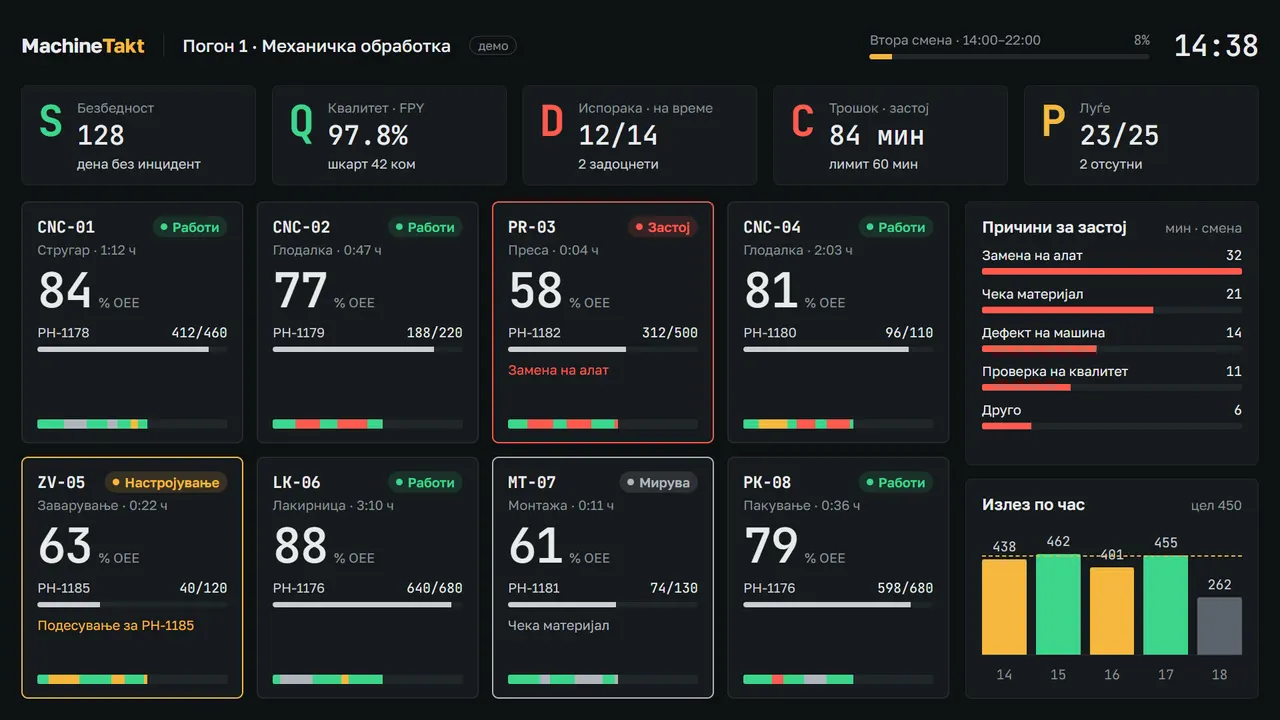
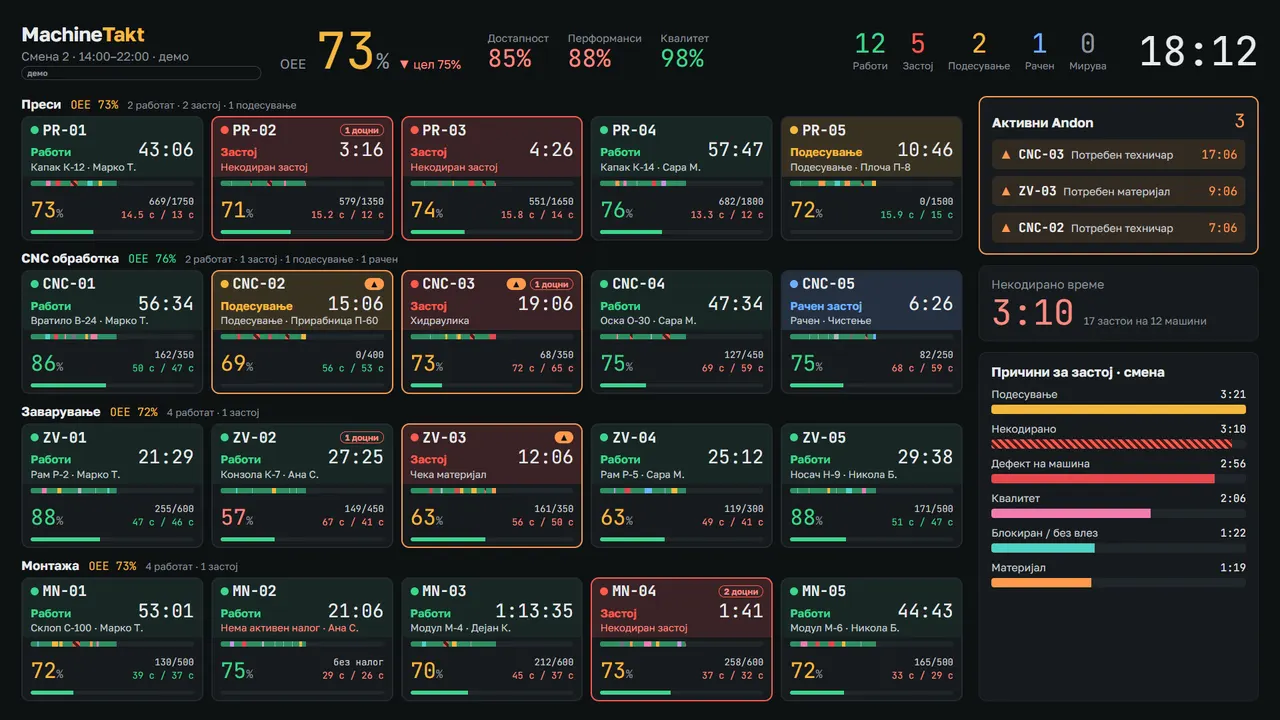
- A shop-floor TV board with SQDCP — safety, quality, delivery, cost, people.
- No login needed — it simply runs on the wall.
- A machine overview on the TV.
Module
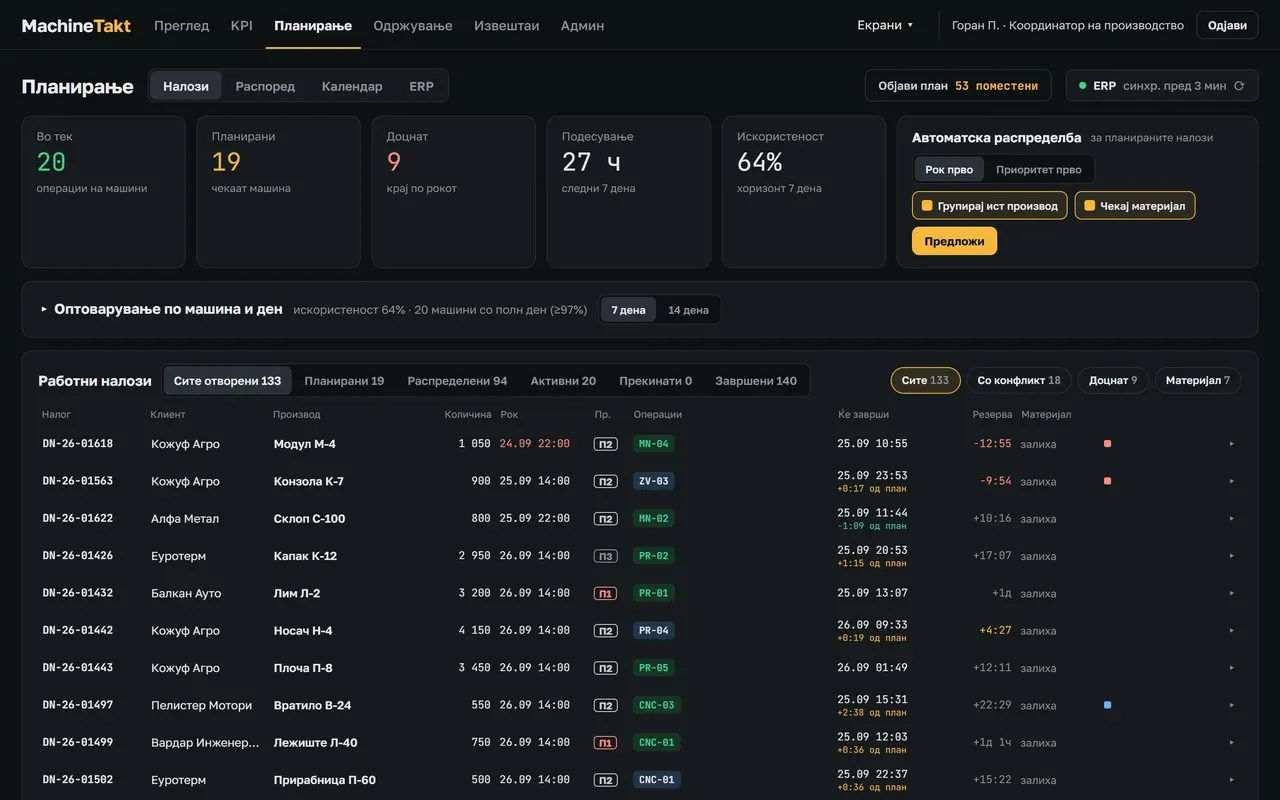
Planning and orders
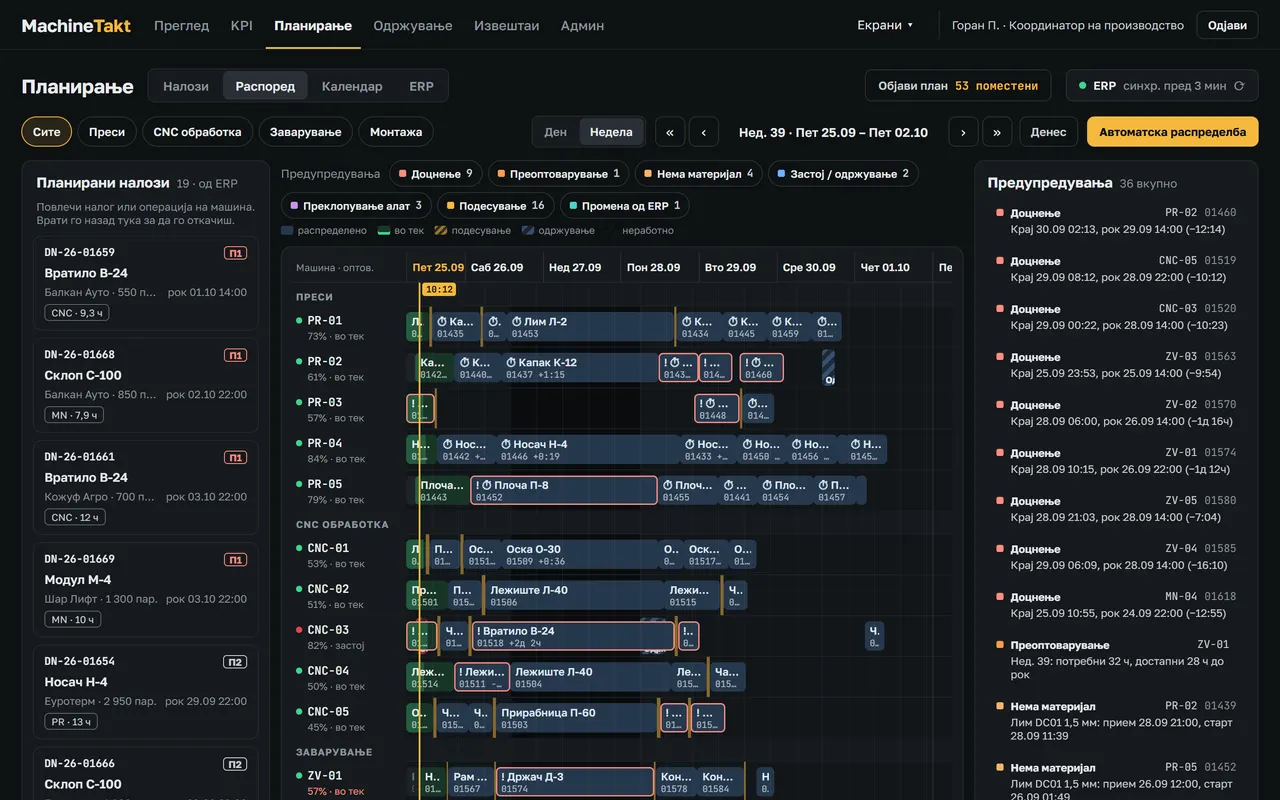
- Orders by phase: Planned → Allocated → Active → Interrupted → Completed.
- Automatic allocation of orders to machines; a schedule board.
- Surplus from an order goes to stock.
Module
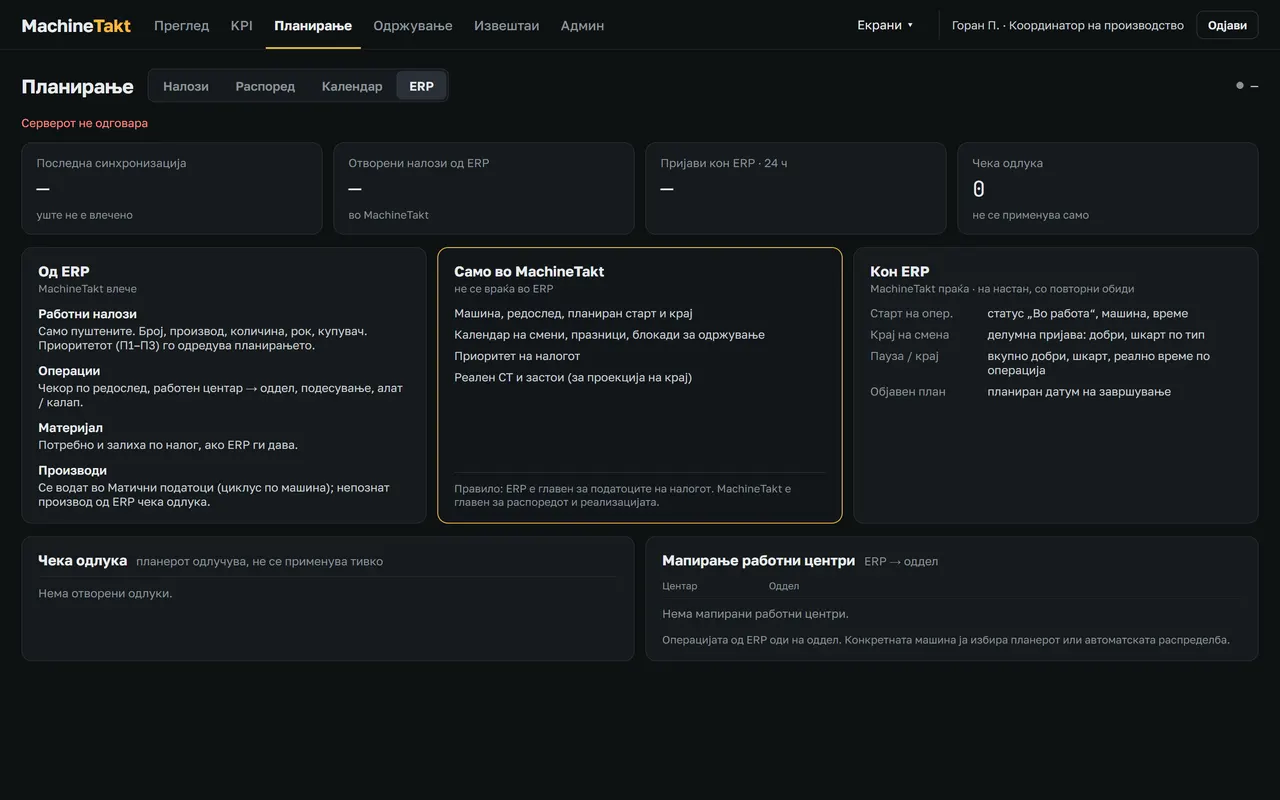
ERP link
- Pull orders from the ERP (Pantheon or in-house) and send reports back.
- Connects through SQL Server, REST or a folder.
- Decisions and the queue of reports are visible — nothing is lost when the link drops.
Module
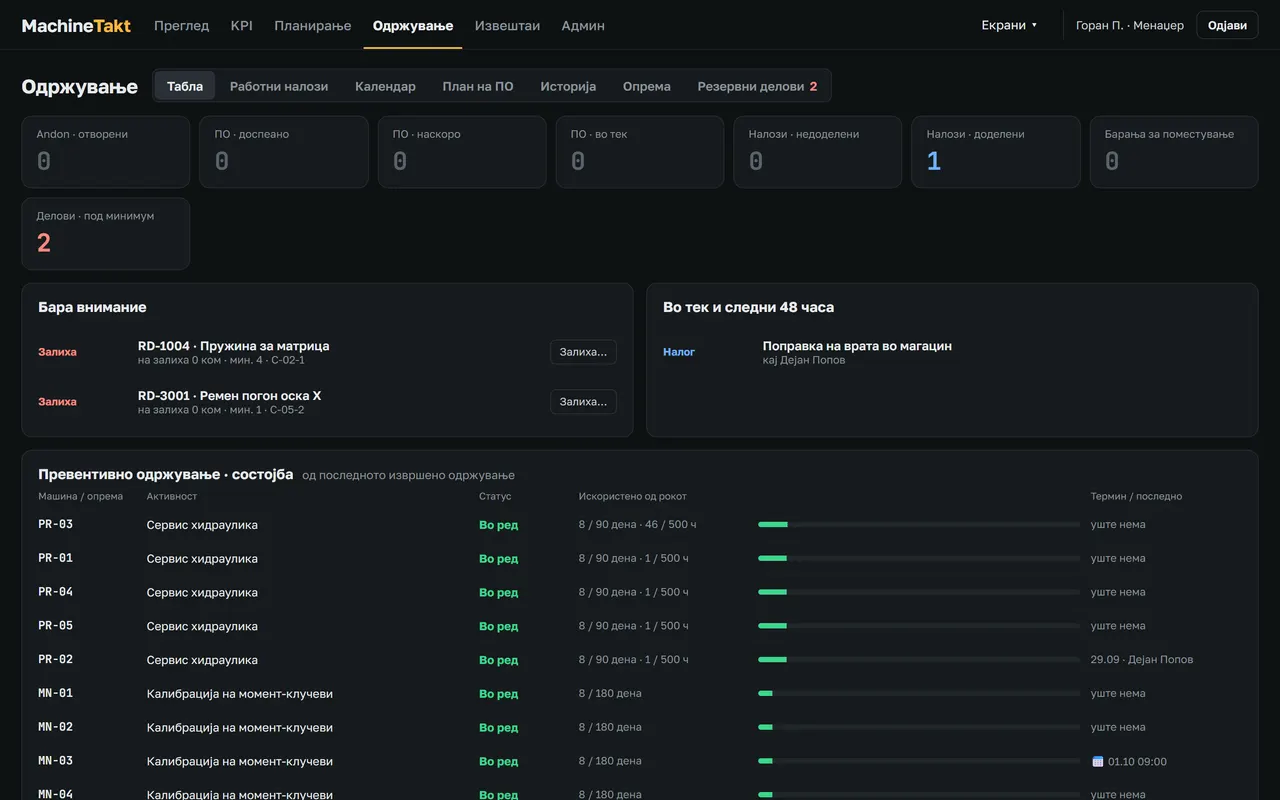
Maintenance and spare parts
- Preventive maintenance on a schedule, work orders.
- Machine history, MTBF and MTTR.
- Parts catalogue, stock, automatic issue when an order or an andon call is closed.
- Planned maintenance is outside OEE; an overrun counts as an availability loss.
Always included
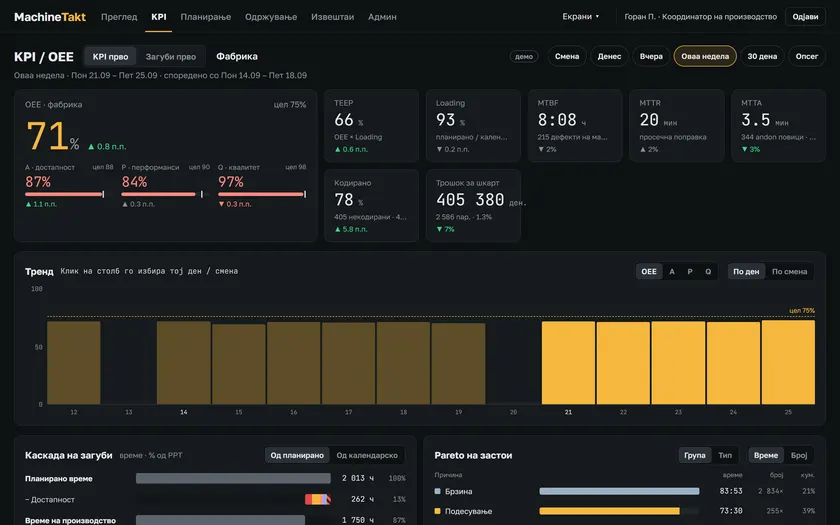
KPIs and reports
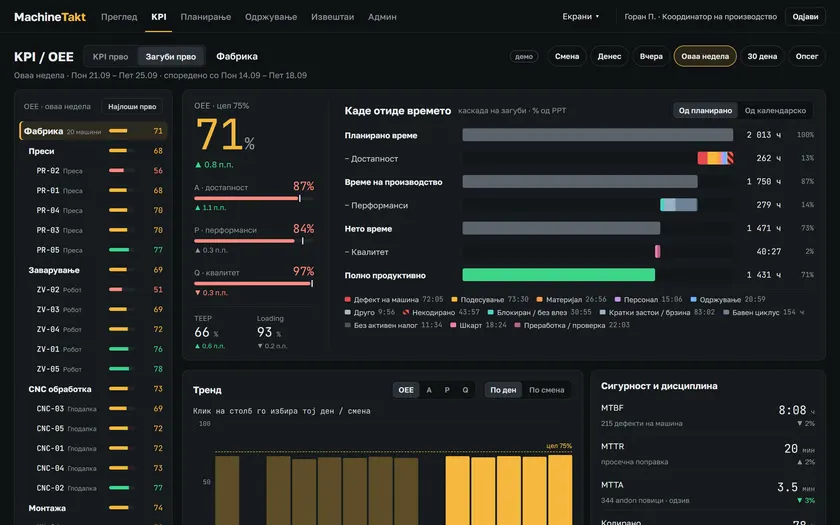
- OEE = availability × performance × quality, per machine, line and shift.
- Pareto of losses by reason — exactly where the time goes.
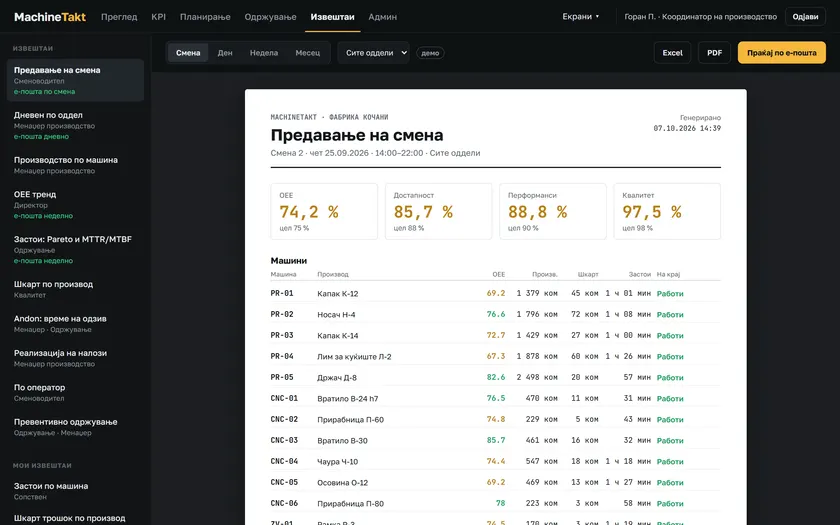
- Reports for a shift, a day or a period.
Always included
Administration
- Roles and rights; access is open by default and restrictions are switched on when needed.
- Machines, connections and thresholds are changed only by the supplier.